

This page describes how to perform a firmware update on Tubbutec Drummertime modules.
Check the current firmware version
To check which firmware version is installed on your 6equencer, go into config mode
- FUNC + CONF (long-press)
Then press
- FUNC + CLR
For a second all leds will turn off and the firmware version displayed with the red leds.
- All leds off, MUTE + CLR + L.STEP on: Firmware version 1.24
- All leds off, TAP on: Firmware version 1.25
- All leds off, TAP + L.STEP on: Firmware version 1.26
- All leds off, TAP + CLEAR on: Firmware version 1.27
How to Update
There are two ways to update via midi:
- Via the web-configurator / updater
- By Sending sysex using a 3rd party tool (MidiOX on Windows, Sysex Librarian on OSX)
Bootloader mode
To access the Drummertime bootloader, power down Drummertime and while pressing and holding FUNC turn it on again. The CH led will light up in green.
Web configurator
This browser based tool can be used to update the Drummertime firmware. You will need a browser that supports WebMIDI.
Open the updater / configurator in a new tap.
- In the configurator/updater, select the FIMRWARE UPDATE tap
- Select the correct MIDI output that is connected to Drummertime. Make sure to use a MIDI TRS type A cable.
- Next, select “Drummertime” as product and load the image file with file extension .ebi (downloads below, you will need to unzip the download file).
Update
- Enter the Bootloader mode on Drummertime as described above.
- Press “Start firmware update” in the firmware updater tool. The AC LED should start blinking in yellow and a yellow progress bar should be displayed.
If all goes well, green LEDs will turn on to indicate a successful update and Drummertime will boot with the new firmware.
If you see red leds an error has occured. In this case try again and/or contact us with the error code. You can not damage or brick Drummertime as he bootloader can always be accessed by pressing LAST STEP during startup.
Update using Sysex Tools
If your browser does not support WebMIDI, or if you want to update your sequencer offline, you can save the update as a sysex file and send it to the sequencer using MIDIOX or SysexLibrarian. In order to do that, press the “Save as Sysex” button in the updater tool.
Update Using MidiOX
Enter the Bootloader mode on 6equencer as described above.
- Open MidiOX and select the correct midi output via Options -> MIDI Devices
- Go to View -> SysEx
- enter the configuration Sysex -> Configure. Activate “Delay after F7” and set it to 200.
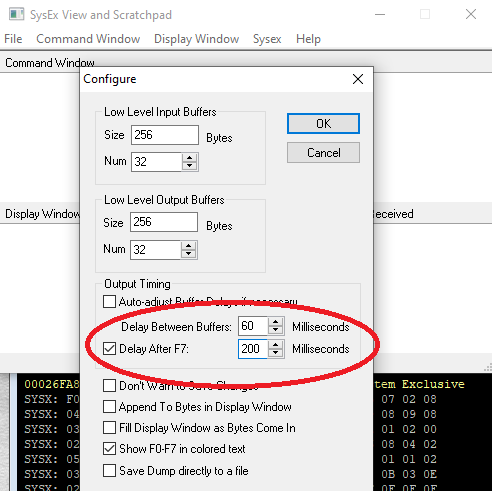
- Open and send the firmware update file File->Send SysEx File. Use the file with .syx extension.
- Wait until the update is finished. While Updating the L.STEP LED should blink in blue.
- When the update is complete, all steps will light up in blue for a moment, then the new firmware will start.
Update Using Sysex Librarian
- Enter the Bootloader mode on 6equencer as described above.
- Download Syex Librarian from and install it.
- Open the firmware syses file with .syx extension
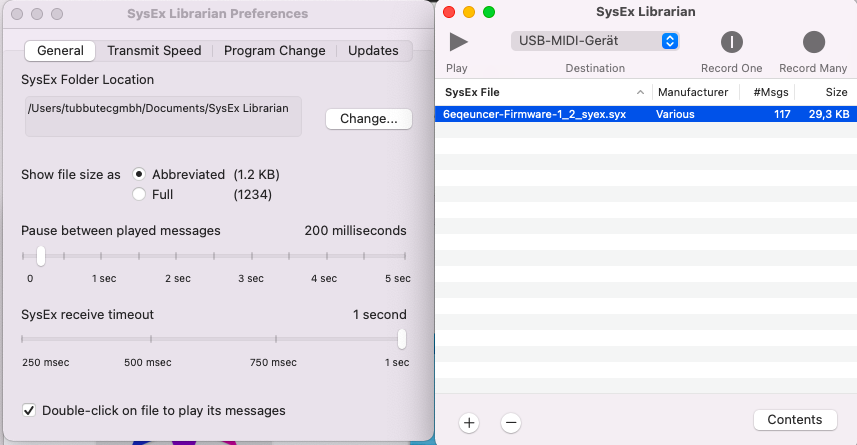
- Go to Sysex librarian – Preferences and set “Pause between played messages” to about 200 (anything larger than 100 is fine)
- Select the correct midi interface, connect it to 6equencer midi in
- Press play
- Wait until the update is finished. While Updating the L.STEP LED should blink in blue.
- When the update is complete, all steps will light up in blue for a moment, then the new firmware will start.
Firmwares
Here are the currently available firmware versions. Unzip them before loading them into the updater tool
Drummertime firmware version 1.27 (26.6.2026)
FEATURE: Added midi through option. Can be activated in config menu, page OH (blue), press AC to turn on/off
Drummertime firmware version 1.26 (9.6.2026)
FIX: Change play direction to BACK happens on BACK button release (previously only on FUNC release)
Drummertime firmware version 1.25 (Initial release version)
FEATURE: It is now possible to change the MIDI note numbers using the configurator tool
Drummertime firmware version 1.24 (Initial release version)