
With the web-based TR-6oh6 configurator you can define the MIDI note numbers for the instruments, and update the firmware.
How to check your firmware version:
- Put the MODE selector to CONFIG
- Put the INSTRUMENT/TRACK selector to 8 VARIOUS
- Press STEP 16 and hold it
- LEDs will light up indicating the firmware version in binary
How to update:
- Connect MIDI out from your computer to MIDI in of the TR-6oh6
- In the configurator, set up your MIDI output accordingly. Your browser needs to support WebMIDI. If it does not, you can also send the firmware using an external Sysex programm (described below).
- Go to the FIRMWARE UPDATE tap.
- Load the .ebi firmware file
- In order to get the TR-6oh6 into the bootloader, perform the following steps:
- Turn off the TR-606
- Press and hold the CLEAR button
- Turn on the TR-606
- You have sucessfully entered the bootloader when you see LEDs 1-4 are turned on.
- Press “Start firmware update”
- You should see LED 1 start blinking. When finished LEDs 5-8 will light up for a second, then the new firmware will boot
Firmwares
Firmware 1.02 29.6.2026
– FEAT: Level of flam instrument can change flam type
– FEAT: MIDI soft through
– FEAT: arp is stopped and unlatched when saving arp to pattern
– FEAT: added visual feedback when saving arp to pattern
– FEAT: visual feedback of triggers in flam menu
– FIX: Instrument pattern generator has stopped working in 1.01
– FIX: saving an empty arp to pattern in replace mode doesn’t erase the pattern
– FIX: saving an arp to pattern in overlay mode doesn’t erase the pattern
– FIX: flam triggers retain level of original trigger
– FIX: flam stops when stop pressed
– FIX: output channel was always channel 10
– FIX: no note off was sent
Firmware 1.01 8.6.2026
– FIX: fixed bug in reslicer, short repeats could latch
– FEATURE: improved pattern generator
– FIX: setting flam type via MIDI CC23 did not work
– FIX: save LIVE TOOLS settings also when turning MODE switch from LIVE to PLAY PATTERN
– FIX: length of chain (song) is 32 (was 31)
Update using Sysex Tools
If your browser does not support WebMIDI, or if you want to update your sequencer offline, you can save the update as a sysex file and send it to the sequencer using MIDIOX or SysexLibrarian. In order to do that, press the “Save as Sysex” button in the updater tool.
Update Using MidiOX
Enter the Bootloader mode on 6equencer as described above.
- Open MidiOX and select the correct midi output via Options -> MIDI Devices
- Go to View -> SysEx
- enter the configuration Sysex -> Configure. Activate “Delay after F7” and set it to 200.
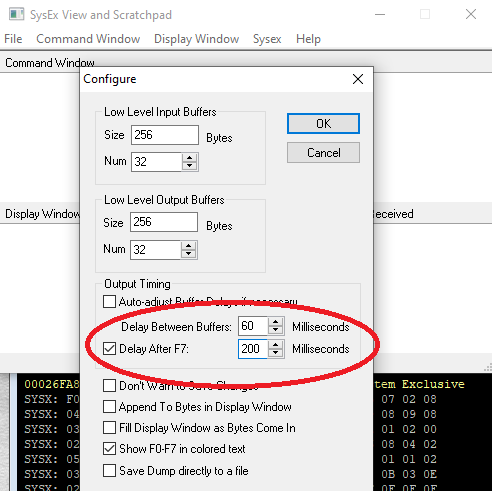
- Open and send the firmware update file File->Send SysEx File. Use the file with .syx extension.
- Wait until the update is finished. While Updating the L.STEP LED should blink in blue.
- When the update is complete, all steps will light up in blue for a moment, then the new firmware will start.
Update Using Sysex Librarian
- Enter the Bootloader mode on 6equencer as described above.
- Download Syex Librarian from and install it.
- Open the firmware syses file with .syx extension
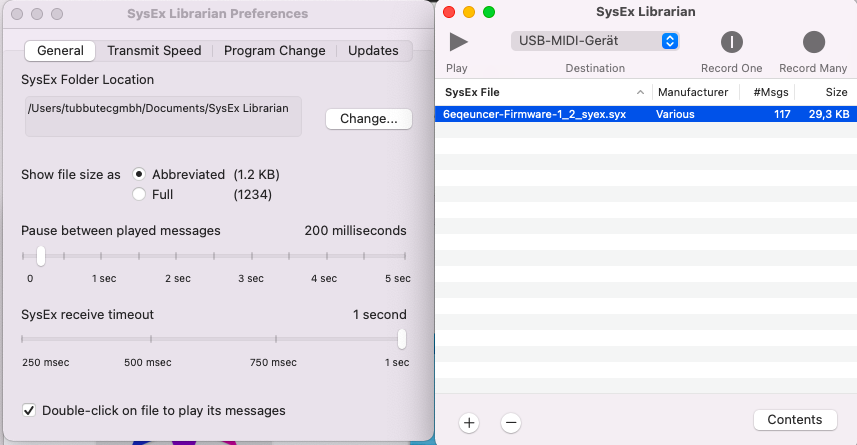
- Go to Sysex librarian – Preferences and set “Pause between played messages” to about 200 (anything larger than 100 is fine)
- Select the correct midi interface, connect it to 6equencer midi in
- Press play
- Wait until the update is finished. While Updating the L.STEP LED should blink in blue.
- When the update is complete, all steps will light up in blue for a moment, then the new firmware will start.